
Rohit · Launch Video Breakdown: Hook, Pacing & Motion Design
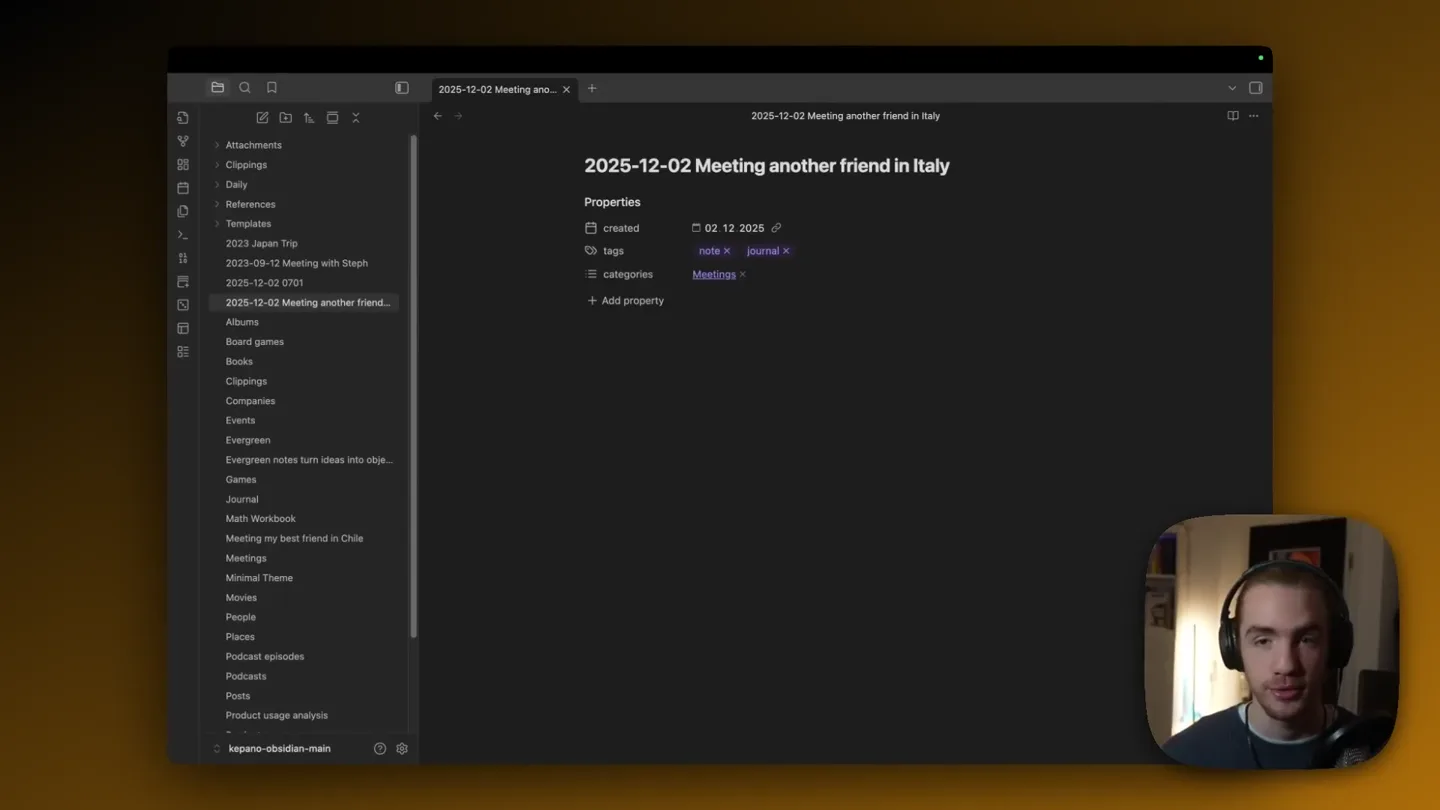
this is how the founder of obsidian actually takes notes in his own app. most users get this wrong. barely any folders. heavy internal linking. categories live as properties on the note itself. art…
Scene-by-scene timeline & spoken transcript
The Hook
Efficient Note Categorization with Properties
“this is how the founder of obsidian actually takes notes in his own app. most users get this wrong. barely any folders. heavy internal linking. categories live as properties on the note itself. art…”
- On screen
- 2025-12-02 Meeting another friend in Italy Properties created 02. 12. 2025 tags note x journal x categories Meetings + Add property Albums Apps Board games Books Clippings Companies Conference sessions Emails Events Attachments Clippings Daily References Templates 2023 Japan Trip 2023-09-12 Meeting with Steph 2025-12-02 0701 2025-12-02 Meeting another friend... Albums Board games Books Clippings Companies Events Evergreen Evergreen notes turn ideas into obje... Games Journal Math Workbook Meeting my best friend in Chile Meetings Minimal Theme Movies People Places Podcast episodes Podcasts Posts Product usage analysis kapano-obsidian-main
- Camera
- Close-up on the software interface, with the presenter visible in a small corner overlay. The camera remains static, focusing on the screen interaction.
- Motion
- Screen capture with a picture-in-picture presenter overlay. UI elements highlight and animate on user interaction (e.g., dropdown menus appearing, text input).
Product Reveal
Streamlined Template Application
“Almost every note I create starts from a template. I use templates heavily because allow me to lazily add information that will help me find the note later. I have a template for every category with properties at the top, to capture data such as: Dates — created, start, end, published People — author, director, artist, cast, host, guests Themes — grouping by genre, type, topic, related notes Locations — neighborhood, city, coordinates Ratings — more on this below A few rules I follow for properties: Property names and values should aim to be reusable across categories. This allows me to find things across categories, e.g. genre is shared across all media types, which means I can see an archive of Sci-fi books, movies and shows in one place.”
- On screen
- Properties and templates Almost every note I create starts from a template. I use templates heavily because allow me to lazily add information that will help me find the note later. I have a template for every category with properties at the top, to capture data such as: Dates — created, start, end, published People — author, director, artist, cast, host, guests Themes — grouping by genre, type, topic, related notes Locations — neighborhood, city, coordinates Ratings — more on this below A few rules I follow for properties: Property names and values should aim to be reusable across categories. This allows me to find things across categories, e.g. genre is shared across all media types, which means I can see an archive of Sci-fi books, movies and shows in one place. Avoid non-standard Markdown. Always pluralize categories and tags. Use internal links profusely. Use YYYY-MM-DD dates everywhere. Use the 7-point scale for ratings. Keep a single to-do list per week. Having a consistent style collapses hundreds of future decisions into one, and gives me focus. For example, I always pluralize tags so I never have to wonder what to name new tags. Choose rules that feel comfortable to you and write them down. Can always change your rules later. Folders and organization I use very few folders. I avoid folders because many of entries belong to more than one area of thought. My system is oriented toward speed and laziness. I don't want the overhead of having to consider where some should go. I do not use nested sub-folders. I do not use the file explorer much for navigation. I mostly navigate using the quick switcher, backlinks, or links within a note. My notes are primarily organized using the categories property. Categories display an overview of related notes, using the bases feature in Obsidian. Most of my notes are in the root of the vault, not a folder. This is where I write about my personal world: journal entries, essays, evergreen notes, and other personal notes. If a note is in the root, I know it's something I wrote, or relates directly to me. Two reference folders I use: References where I write about things that exist outside my world. Books, movies, places, people, podcasts, etc. Always named using the title e.g. Book title.md or Movie title.md. Clippings where I save things other people wrote, mostly essays and articles.
- Camera
- The camera pans down the document, revealing more text and content. The presenter remains in the corner.
- Motion
- Smooth vertical scroll animation to reveal more content. Text highlights and cursor movements guide the viewer's attention.
Feature Teaser
Customizing Hotkeys for Workflow Efficiency
“(No spoken dialogue — The audio features a consistent, low-key ambient electronic score with a corporate tech feel. Instrumentation includes subtle synth pads, light percussive elements, and a gentle, underlying sub-bass. There are no high-energy audio transitions, risers, sweeps, or sub-bass drops/impacts. The music serves as a background element, maintaining a calm and focused atmosphere throughout the instructional dialogue.)”
- On screen
- Search hotkeys Showing 2 hotkeys. Unique note creator: Add unique internal link Unique note creator: Create new unique note Press hotkey Options General Editor Files and links Appearance Hotkeys Core plugins Community plugins Backlinks Canvas Command palette Daily notes File recovery Note composer Page preview Quick switcher Templates Unique note creator insert templ Showing 1 hotkey. Templates: Insert template Blank daily Showing 3 hotkeys. Daily notes: Open next daily note Daily notes: Open previous daily note Daily notes: Open today's daily note intern Showing 2 hotkeys. Add internal link Unique note creator: Add unique internal link
- Camera
- The camera focuses on the settings menu, specifically the 'Hotkeys' section. The presenter is still visible.
- Motion
- UI navigation is shown through clicks and menu transitions. Text input and search bar interactions are animated, with results appearing dynamically.
Call to Action
Rapid Note Creation and Template Integration
“(No spoken dialogue — The audio features a consistent, low-key ambient electronic score with a corporate tech feel. Instrumentation includes subtle synth pads, light percussive elements, and a gentle, underlying sub-bass. There are no high-energy audio transitions, risers, sweeps, or sub-bass drops/impacts. The music serves as a background element, maintaining a calm and focused atmosphere throughout the instructional dialogue.)”
- On screen
- 2025-12-02 0723 Properties created 02. 12. 2025 tags note x journal x + Add property Attachments Clippings Daily References Templates 2023 Japan Trip 2023-09-12 Meeting with Steph 2025-12-02 0701 2025-12-02 0723 2025-12-02 Meeting another friend... Albums Board games Books Clippings Companies Events Evergreen Evergreen notes turn ideas into obje... Games Journal Math Workbook Meeting my best friend in Chile Meetings Minimal Theme Movies People Places Podcast episodes Podcasts Posts Product usage analysis kapano-obsidian-main metings Meetings List Template Options General Editor Files and links Appearance Hotkeys Core plugins Community plugins Backlinks Canvas Command palette Daily notes File recovery Note composer Page preview Quick switcher Templates Unique note creator Create custom views that let you sort, and filter files using their properties. Bookmarks Save shortcuts to files, searches, headings, and graphs. Canvas Arrange and connect notes on an infinite canvas. Command palette Use Cmd/Ctrl and begin typing to invoke a command. Daily notes Create or open today's daily note. File recovery Restore recent snapshots to recover from accidental data loss. Snapshots are only saved for Markdown files. Files Browse the files and folders in your vault. Footnotes view Show a list of footnotes from the current note. Format converter Convert Markdown from other apps to Obsidian format. Graph view Visualize the relationships between your notes. Note composer Merge two notes or split one into two. Outgoing links Show outgoing links and detect unlinked mentions of other notes in the current note. Outline Show the table of contents for the current note. New file location The folder path to create the new unique note in. Template file location The file path to use as template. Unique prefix format For more syntax, refer to format reference Your current syntax looks like this: 2025-12-02 0724 Templates/Journal Temp YYYY-MM-DD HHmm oijwef
- Camera
- The camera follows the cursor as it creates new notes and applies templates, demonstrating the speed of the workflow. The presenter remains in the corner.
- Motion
- Rapid UI interactions, including typing, menu selections, and template application, are shown with precise cursor movements and instant feedback.
Motion design primitives
Synthesizable in Remotion · key components of the founder-tech-workflow-showcase template.
PictureInPicturePresenter
A live video feed of the presenter is displayed in a small, rounded-corner overlay in the bottom-right corner of the screen, maintaining eye contact and engagement while the main screen content is showcased.
+ Code construction recipe
Use a <Video> component for the presenter's feed, styled with `borderRadius` and `position: 'absolute'` for placement. Implement `z-index` to ensure it overlays the main content. Consider a subtle `boxShadow` for depth.
DynamicUIScrollReveal
Content within the software interface smoothly scrolls vertically to reveal new sections of text or UI elements, often accompanied by a subtle highlight or cursor movement to draw attention to the newly revealed information.
+ Code construction recipe
Utilize `interpolate` for `transform: translateY` on a container element, triggered by a scroll event or timeline progression. Combine with `opacity` transitions for text elements appearing into view. Use `spring` for a natural, fluid scroll feel.
InteractiveElementHighlight
Specific UI elements, such as input fields, dropdown menus, or buttons, are highlighted or animated upon user interaction (e.g., typing, clicking), providing clear visual feedback and guiding the viewer through the software's functionality.
+ Code construction recipe
Apply `interpolate` to `backgroundColor` or `boxShadow` properties of target UI elements. For dropdowns, animate `height` and `opacity` with a `spring` function. Cursor movements can be simulated with an SVG path animation or a simple image sprite.
Style DNA & aesthetic system
Visual aesthetic
Typography
Motion
Special effects
Pacing & rhythm
Conceptual story rhythm
- 1
The Founder's Workflow
Purpose. Introduce the founder's unique and efficient method of using their own product, immediately establishing authority and a 'secret sauce' appeal.
Execution. Initial screen capture showing the software interface with the founder in a picture-in-picture, demonstrating core note-taking and categorization.
- 2
Template-Driven Efficiency
Purpose. Explain the core mechanism of efficiency: heavy reliance on templates and properties to structure information, reducing manual effort.
Execution. Scrolling through a document explaining the philosophy behind templates and properties, with on-screen text highlighting key concepts.
- 3
Customization for Speed
Purpose. Showcase how users can personalize the software through hotkeys and settings to further optimize their workflow.
Execution. Navigating through the settings menu, specifically demonstrating how to configure hotkeys for common actions, with dynamic UI interactions.
- 4
Seamless Integration in Practice
Purpose. Demonstrate the practical application of the discussed features, showing how quickly new notes are created and integrated into the system.
Execution. Rapid-fire creation of new notes, applying templates, and linking them, all driven by efficient keyboard shortcuts and UI feedback.
Remix in Animatiq Studio
Master remix prompt · agent-ready
Sample remix
Objective
A new AI-powered code editor that helps developers write cleaner code faster.How the recipe adapts
The dark-mode UI will be adapted to the code editor's theme, with the founder demonstrating AI-assisted refactoring and code generation. The picture-in-picture presenter will explain the AI's logic. Dynamic UI scroll reveal will showcase long code files, and interactive element highlights will draw attention to AI suggestions and auto-completions. The calm electronic score will underscore the focus and precision of coding, and the slow pacing will allow for detailed explanation of complex AI features.Remix blueprint · founder-tech-workflow-showcase
Scene durations (4 scenes, 200s)
Key Remotion components
Related Productivity Product Launches
Explore all Productivity launches →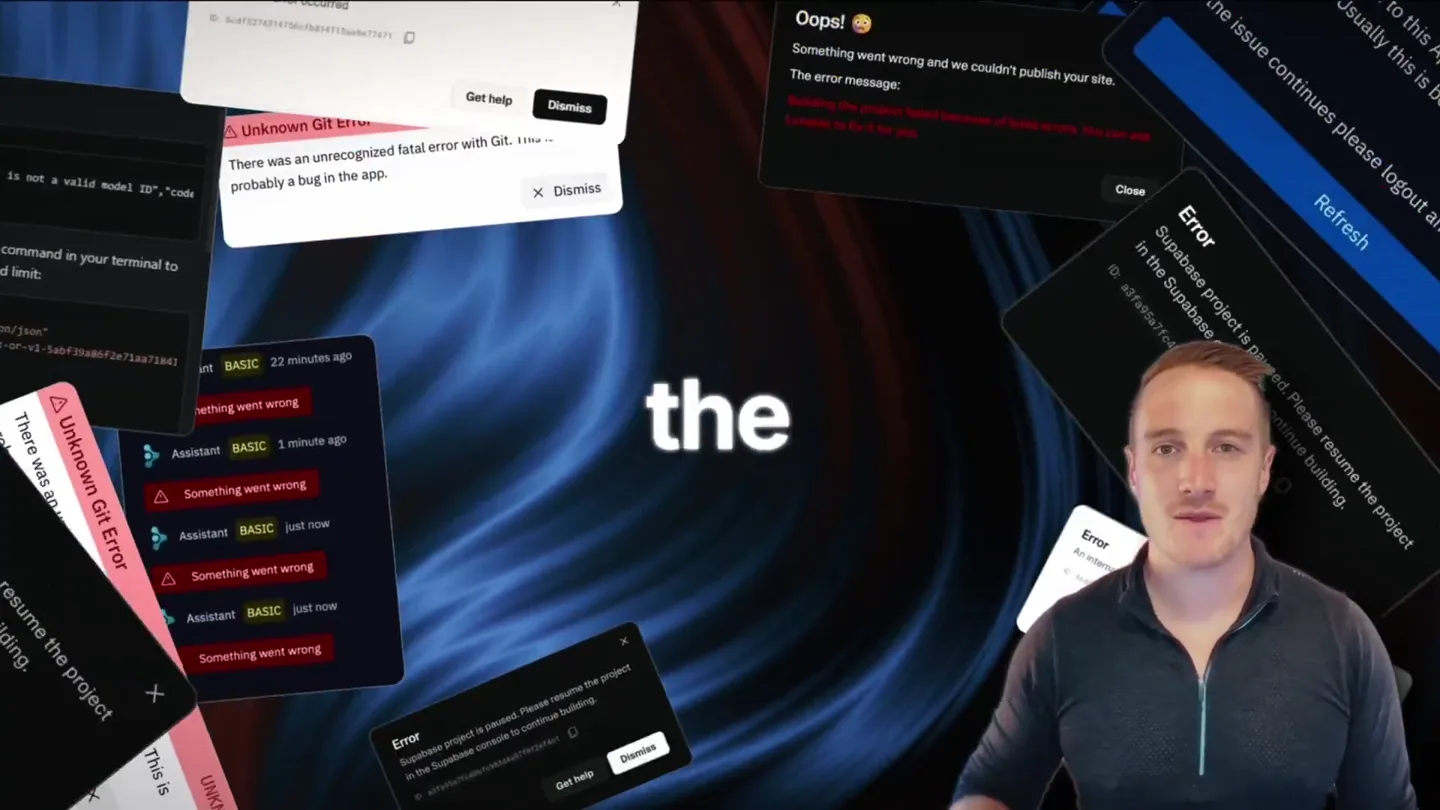
Bolt v2 pairs Claude Code and Codex agents with built-in hosting, database and storage so apps ship without setup.
Anthropic introduces Cowork, which brings the Claude Code way of delegating tasks to everyday, non-technical work.

Making life multiplanetary