Freebuff (by Nico) · Launch Video Breakdown: Hook, Pacing & Motion Design
Stop paying for Claude Code and Codex. They just launched a 100% free coding agent. You can use any model for free: • DeepSeek v4 Pro/Flash • Kimi K2.6 • MiniMax M2.7 Installation: → npm i -g freeb…
Scene-by-scene timeline & spoken transcript
The Hook
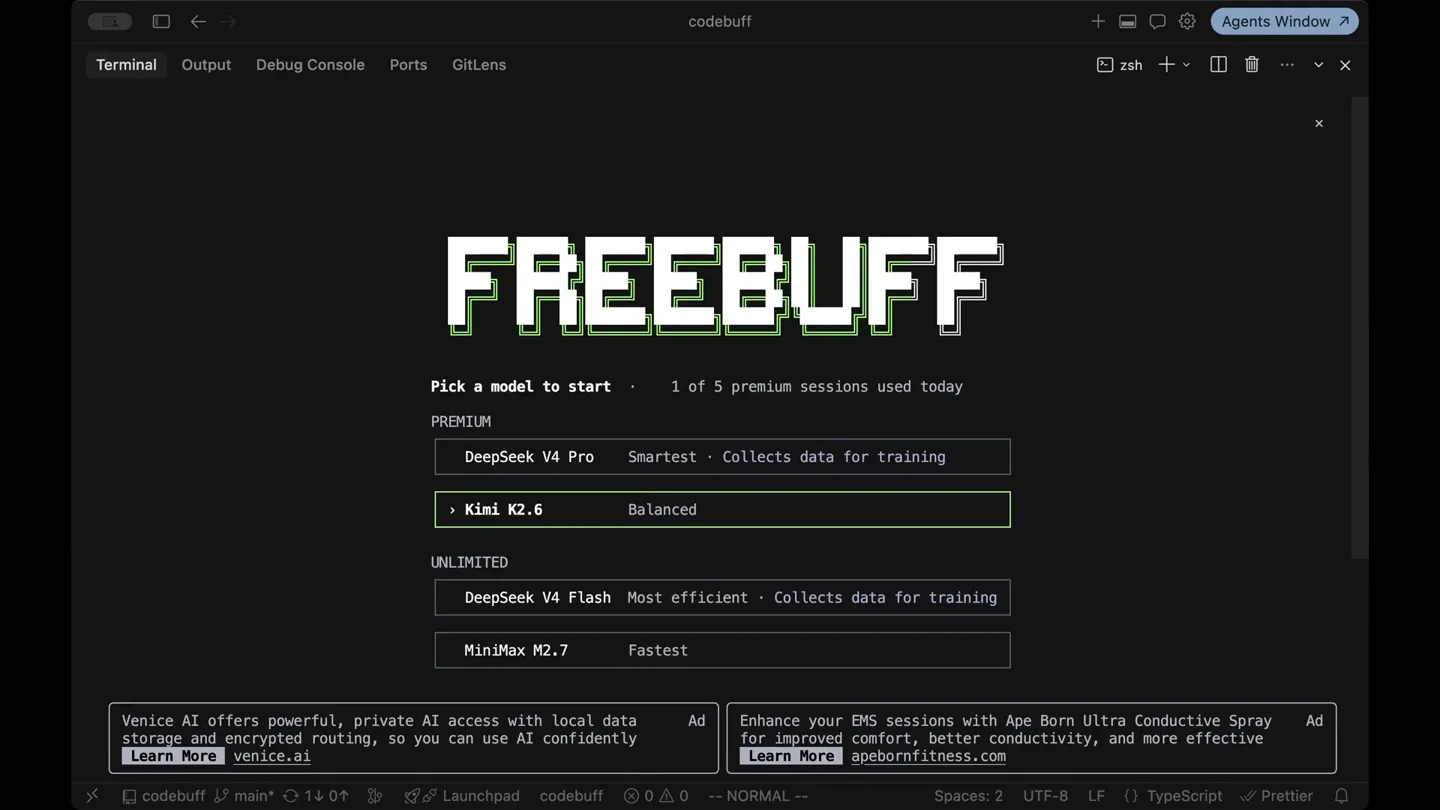
Introducing Freebuff: Choose Your Free AI Model
“(No spoken dialogue — The track begins with a sustained, evolving pad sound, creating an atmospheric and slightly mysterious mood. At 00:03, a subtle, high-frequency riser begins to build, leading into a significant sub-bass drop/impact at 00:04.)”
- On screen
- codebuff Agents Window? Terminal Output Debug Console Ports GitLens zsh FREEBUFF Pick a model to start 1 of 5 premium sessions used today PREMIUM DeepSeek V4 Pro Smartest • Collects data for training Kimi K2.6 Balanced UNLIMITED DeepSeek V4 Flash Most efficient • Collects data for training MiniMax M2.7 Fastest Venice AI offers powerful, private AI access with local data storage and encrypted routing, so you can use AI confidently Learn More venice.ai Ad Enhance your EMS sessions with Ape Born Ultra Conductive Spray for improved comfort, better conductivity, and more effective Learn More apebornfitness.com Ad codebuff main* 100↑ Launchpad codebuff 0A0 -- NORMAL -- Spaces: 2 UTF-8 LF {} TypeScript Prettier
- Camera
- Static, wide shot of a VS Code-like IDE interface, centered on the 'FREEBUFF' logo and model selection menu.
- Motion
- Subtle cursor interaction highlighting different AI models, simulating user choice. Text elements appear instantly.
Product Reveal
Freebuff in Action: Selecting DeepSeek V4 Pro
“(No spoken dialogue — A rhythmic, arpeggiated synth melody with a clean, digital timbre, accompanied by a driving sub-bass line and crisp, electronic percussion (snare-like hits).)”
- On screen
- codebuff Agents Window? Terminal Output Debug Console Ports GitLens zsh FREEBUFF Pick a model to start 1 of 5 premium sessions used today PREMIUM DeepSeek V4 Pro Smartest • Collects data for training Kimi K2.6 Balanced UNLIMITED DeepSeek V4 Flash Most efficient • Collects data for training MiniMax M2.7 Fastest Venice AI offers powerful, private AI access with local data storage and encrypted routing, so you can use AI confidently Learn More venice.ai Ad Enhance your EMS sessions with Ape Born Ultra Conductive Spray for improved comfort, better conductivity, and more effective Learn More apebornfitness.com Ad codebuff main* 100↑ Launchpad codebuff 0A0 -- NORMAL -- Spaces: 2 UTF-8 LF {} TypeScript Prettier
- Camera
- Static, wide shot of the IDE. The focus remains on the model selection, with a cursor selecting 'DeepSeek V4 Pro'.
- Motion
- Cursor animation, highlighting, and selection of a menu item. The UI elements remain static, emphasizing the interaction.
Feature Teaser
Interactive Coding Agent: 'Hi x!'
“(No spoken dialogue — Another high-energy riser starts around 00:07, culminating in a more pronounced sub-bass drop/impact at 00:08. The arpeggiated synth continues, becoming more prominent, with additional layers of shimmering, high-frequency synth textures.)”
- On screen
- codebuff Agents Window? Terminal Output Debug Console Ports GitLens zsh FREEBUFF Freebuff will run commands on your behalf to help you build. Directory ~/codebuff DeepSeek V4 Pro 1h left x End session Enter a coding task or / for commands codebuff main* 100↑ Launchpad codebuff 0A0 -- NORMAL -- Spaces: 2 UTF-8 LF {} TypeScript Prettier hi x! [09:05 PM] hi x! Thinking 7s Esc working The user just said "hi x!" which seems like a casual greeting. Let me respond in a friendly manner and ask if Hey there! How can I help you today? Whether it's working on the Codebuff 8s Esc work king... How can I help you today? Whether it's working on the Codebuff codebase, reviewing changes, debugging something, or anything else - just let me know what you need! 10s Esc ZERO provides everything developers need: service discovery, authentication handling, API management, and orchestration View Docs ZERO Ad Building AI agents that need external service access? ZERO removes the technical barriers blocking your agents from See How It Works ZERO Ad
- Camera
- Static, wide shot of the IDE. The terminal area expands, and text is typed and generated dynamically.
- Motion
- Typing animation for user input, followed by a 'thinking' animation (ellipsis) and then rapid, character-by-character text generation for the AI's response. UI elements like 'Thinking' and 'working' appear and disappear with subtle fades.
Call to Action
Freebuff: Your Free Coding Agent
“(No spoken dialogue — A final, intense riser builds from 00:15, leading to a powerful sub-bass drop/impact and a bright, sustained synth chord at 00:16, which then fades out.)”
- On screen
- codebuff Agents Window? Terminal Output Debug Console Ports GitLens zsh FREEBUFF Freebuff will run commands on your behalf to help you build. Directory ~/codebuff DeepSeek V4 Pro 1h left x End session Enter a coding task or / for commands codebuff main* 100↑ Launchpad codebuff 0A0 -- NORMAL -- Spaces: 2 UTF-8 LF {} TypeScript Prettier hi x! [09:05 PM] hi x! Thinking 7s Esc working The user just said "hi x!" which seems like a casual greeting. Let me respond in a friendly manner and ask if Hey there! How can I help you today? Whether it's working on the Codebuff 8s Esc work king... How can I help you today? Whether it's working on the Codebuff codebase, reviewing changes, debugging something, or anything else - just let me know what you need! 10s Esc ZERO provides everything developers need: service discovery, authentication handling, API management, and orchestration View Docs ZERO Ad Building AI agents that need external service access? ZERO removes the technical barriers blocking your agents from See How It Works ZERO Ad
- Camera
- Static, wide shot of the IDE, showing the completed AI interaction. The screen then fades to black.
- Motion
- The AI's response text generation completes, followed by a quick fade to black, signaling the end of the demonstration and the video.
Motion design primitives
Synthesizable in Remotion · key components of the dark-ide-cli-launch template.
TerminalTypewriter
Text appears character-by-character in a terminal-like interface, simulating real-time typing, often with a blinking cursor. This is followed by a rapid, character-by-character reveal of AI-generated responses.
+ Code construction recipe
Use `Sequence` and `spring` for cursor blink. For text, use `split` to break text into characters, then `map` over characters with `delay` and `interpolate` opacity and scale for a staggered reveal. AI responses use faster `interpolate` for character reveal.
UIHighlightSelect
A cursor moves to and highlights a specific UI element (e.g., a button or list item), then simulates a click or selection, often with a subtle visual feedback like a border change or background fill.
+ Code construction recipe
Animate `x` and `y` position of a cursor SVG/component using `spring`. Apply `interpolate` on `backgroundColor` or `borderColor` for the highlight effect, and `scale` or `opacity` for click feedback.
DynamicTextFadeIn
Short, punchy text elements or status indicators (e.g., 'Thinking...', 'working...') appear with a quick fade-in and fade-out, often synchronized with audio cues.
+ Code construction recipe
Utilize `interpolate` for `opacity` from 0 to 1 and back to 0 over a short duration. Can be combined with `scale` for a subtle pop effect. Synchronize `start` and `duration` with audio events.
Style DNA & aesthetic system
Visual aesthetic
Typography
Motion
Special effects
Pacing & rhythm
Conceptual story rhythm
- 1
Model Selection
Purpose. Immediately establishes the product's core value proposition: free access to various AI models.
Execution. A static shot of the IDE, with a cursor quickly navigating and selecting an AI model from a list.
- 2
Agent Initialization
Purpose. Transitions from selection to active use, showing the agent being ready for interaction.
Execution. The UI shifts to a terminal view, displaying introductory text about the agent's function and readiness.
- 3
First Interaction
Purpose. Demonstrates the agent's conversational and coding capabilities through a simple user query and AI response.
Execution. User types 'hi x!', followed by 'Thinking...' and the AI's detailed, helpful response appearing character by character.
- 4
Call to Action / Fade Out
Purpose. Concludes the demonstration, leaving the viewer with a clear understanding of the product's utility and a sense of completion.
Execution. The AI's response finishes, and the screen fades to black, implying the seamless integration and utility of the tool.